
Blog

  • WordPress Themes Documentation Guide for Business

    WordPress Themes Documentation Guide for Business

    Choosing the right WordPress theme is crucial for any business website. However, understanding how to properly use, customize, and troubleshoot a theme requires thorough documentation. WordPress themes documentation serves as the essential guide that helps business owners and developers maximize the potential of their chosen theme.

    This guide will walk you through everything you need to know about WordPress themes documentation for business, from understanding its components to practical tips for leveraging it effectively. Whether you are a business owner managing your site or a developer customizing themes, this resource will help you navigate the documentation landscape with confidence.

    Quick Answer

    WordPress themes documentation is a comprehensive resource that explains how to install, configure, customize, and troubleshoot a WordPress theme. For businesses, this documentation ensures that the website’s design and functionality align with brand goals without requiring extensive coding knowledge. It typically includes setup instructions, feature explanations, customization guides, compatibility notes, and troubleshooting tips, enabling users to efficiently manage and optimize their theme for better user experience and performance.

    What Is WordPress Themes Documentation?

    WordPress themes documentation is a set of written instructions and guides provided by theme developers. It covers all aspects of a theme’s usage, including installation, configuration, customization, and maintenance. This documentation is designed to help users understand how to make the most of the theme’s features and ensure the website runs smoothly.

    For businesses, this documentation is vital because it reduces reliance on external developers for minor adjustments and empowers internal teams to manage the website effectively. It also helps avoid common pitfalls that can arise from improper theme usage.

    Key Components of WordPress Themes Documentation

    Effective WordPress themes documentation usually includes the following components:

    • Installation Instructions: Step-by-step guide on how to install the theme via WordPress dashboard or FTP.
    • Setup and Configuration: Details on setting up homepage layouts, menus, widgets, and other theme options.
    • Customization Options: Explanation of customizable elements such as colors, fonts, header styles, and page templates.
    • Plugin Compatibility: Information on recommended or required plugins and how to integrate them.
    • Responsive Design: Notes on how the theme adapts to different devices and screen sizes.
    • Troubleshooting: Common issues and their solutions.
    • Updates and Changelog: Information on theme updates and new features.

    Why Businesses Need Detailed WordPress Themes Documentation

    Businesses rely on their websites to communicate brand identity, generate leads, and provide customer service. Detailed themes documentation supports these goals by:

    • Saving Time and Costs: Clear instructions reduce the need for hiring developers for basic tasks.
    • Ensuring Consistency: Helps maintain brand consistency through proper use of design elements.
    • Improving User Experience: Guides on layout and navigation help create intuitive websites.
    • Facilitating Updates: Documentation ensures smooth theme updates without breaking the site.

    How to Use WordPress Themes Documentation Effectively

    To get the most out of your theme documentation, follow these practical steps:

    • Read Before You Start: Familiarize yourself with the installation and setup sections before activating the theme.
    • Follow Step-by-Step Guides: Use the provided instructions carefully to avoid errors.
    • Utilize Customization Sections: Explore customization options to align the theme with your brand identity.
    • Refer to Troubleshooting: Check the troubleshooting section first if you encounter issues.
    • Keep Documentation Handy: Save or bookmark the documentation for future reference, especially during updates.

    Common Features Explained in WordPress Themes Documentation

    Most business themes include a variety of features that documentation will explain in detail. These often include:

    • Header and Footer Options: How to modify logos, menus, and contact info.
    • Page Builders Integration: Instructions on using popular page builders like Elementor or WPBakery with the theme.
    • Typography Settings: How to change fonts and text sizes.
    • Color Schemes: Customizing colors to match branding.
    • WooCommerce Support: Setting up online stores if applicable.
    • SEO Settings: Built-in SEO features or compatibility with SEO plugins.

    WordPress Themes Documentation Checklist for Business

    Use this checklist to ensure you have covered all essential aspects when working with your theme documentation:

    • Download and save the latest version of the documentation.
    • Review installation and activation instructions.
    • Understand theme setup and configuration options.
    • Explore customization features relevant to your brand.
    • Check compatibility with essential plugins.
    • Review responsive design notes for mobile optimization.
    • Read troubleshooting tips for common issues.
    • Note update procedures and changelog details.
    • Bookmark or save documentation for easy access.

    Comparison Table: Popular Business WordPress Themes Documentation Features

    Theme Name Documentation Format Customization Options Plugin Compatibility Support Availability
    Astra Online & PDF Extensive (colors, typography, layouts) WooCommerce, Elementor, Beaver Builder 24/7 Support & Community
    Divi Online & Video Tutorials Visual Builder with drag-and-drop WooCommerce, Bloom, Monarch Premium Support
    OceanWP Online & Knowledge Base Header styles, colors, typography WooCommerce, Elementor, WPML Ticket Support & Forums
    GeneratePress Online & PDF Layout, colors, typography WooCommerce, Elementor, Beaver Builder Email Support & Community
    Neve Online & Video Tutorials Header/footer, colors, typography WooCommerce, Elementor, Gutenberg Premium & Community Support

    Measuring the Effectiveness of WordPress Themes Documentation

    Businesses should evaluate how well the theme documentation supports their website management by tracking key performance indicators (KPIs) such as:

    • Time to Launch: How quickly the website is set up using the documentation.
    • Customization Success Rate: Percentage of desired customizations achieved without external help.
    • Issue Resolution Time: How fast common problems are solved using troubleshooting guides.
    • User Satisfaction: Feedback from team members managing the site on documentation clarity.
    • Update Smoothness: Frequency of issues during theme updates.

    Regularly reviewing these KPIs helps businesses decide if additional training or expert support is needed.

    Common Mistakes When Using WordPress Themes Documentation

    • Skipping the Documentation: Many users activate themes without reading the instructions, leading to misconfigurations.
    • Ignoring Plugin Requirements: Overlooking recommended plugins can break theme functionality.
    • Not Backing Up Before Changes: Failing to backup before customization or updates risks data loss.
    • Over-Customizing Without Understanding: Making changes without fully understanding the theme structure can cause errors.
    • Using Outdated Documentation: Relying on old documentation can lead to compatibility issues.

    When to Hire an Expert or Agency for WordPress Themes Documentation

    While many businesses can manage themes using documentation alone, there are scenarios where professional help is advisable:

    • Complex Customizations: When your brand requires unique design or functionality beyond the documentation scope.
    • Performance Optimization: Experts can fine-tune themes for speed and SEO.
    • Security Concerns: Professionals ensure theme and plugin compatibility without vulnerabilities.
    • Time Constraints: If your team lacks time or technical skills to follow documentation thoroughly.
    • Ongoing Maintenance: Agencies can provide continuous support and updates.

    Hiring experts ensures your website remains professional, secure, and aligned with business goals.

    WordPress Website Improvement Checklist

    For wordpress themes documentation, review the parts of a WordPress website that affect trust, usability, SEO, security, and lead generation. Keep changes practical and measurable.

    • Check theme quality, plugin load, mobile layout, speed, security, and forms.
    • Review SEO titles, meta descriptions, schema, headings, internal links, and image alt text.
    • Track clicks, rankings, enquiries, conversions, and important page engagement.

    Technical Website Quality Checks

    A business website should be checked for speed, mobile layout, navigation clarity, form function, tracking, security, plugin load, and SEO basics. These checks protect both user experience and search visibility.

    • Test mobile pages, contact forms, thank-you pages, and menus.
    • Review Core Web Vitals, image size, caching, and plugin load.
    • Check SEO titles, meta descriptions, schema, sitemap, and redirects.

    Monthly Website Maintenance Checklist

    Reviewing a website monthly prevents small issues from becoming ranking or lead-generation problems. Check broken links, plugin updates, backups, analytics, form submissions, and high-value pages.

    • Update plugins and themes safely after backup.
    • Review top pages by traffic, enquiries, and conversion rate.
    • Fix thin pages, missing internal links, and outdated service information.

    Frequently Asked Questions

    What is included in WordPress themes documentation?

    It typically includes installation steps, setup instructions, customization options, plugin compatibility, troubleshooting tips, and update notes.

    How can I find the documentation for my WordPress theme?

    Most theme developers provide documentation on their official websites or within the theme package as PDF or online help files.

    Is WordPress themes documentation useful for beginners?

    Yes, it guides beginners through setup and customization without needing coding knowledge.

    Can I customize my theme without coding using documentation?

    Many themes offer customization through the WordPress Customizer or page builders explained in the documentation.

    What should I do if the documentation doesn’t solve my problem?

    You can contact the theme’s support team or hire a WordPress expert for assistance.

    How often is themes documentation updated?

    Documentation is usually updated alongside theme updates to reflect new features and fixes.

    Does documentation cover mobile responsiveness?

    Yes, most business themes include notes on responsive design and how to optimize for mobile devices.

    Are video tutorials part of WordPress themes documentation?

    Some premium themes include video tutorials to complement written guides for easier learning.

    Conclusion

    WordPress themes documentation is an indispensable resource for businesses aiming to build and maintain a professional website. It empowers users to install, customize, and troubleshoot themes effectively, saving time and reducing dependency on developers. By understanding the key components of documentation and following best practices, businesses can ensure their website reflects their brand identity and performs optimally.

    Remember to keep your documentation updated and consult it regularly during theme updates or customizations. When complex needs arise, don’t hesitate to seek expert help to maintain a seamless online presence. For more insights on managing your WordPress website, check out WordPress Themes Automation Guide for Business and explore advanced customization tips at WordPress Themes Customization Tips for Business.

    Official Resources for Further Reading

    These official resources support the topic and help readers verify platform-specific guidance.

  • WordPress Themes Checklist for Seamless User Experience

    WordPress Themes Checklist for Seamless User Experience

    Choosing and setting up the right WordPress theme is a critical step in building a website that offers a seamless user experience. A well-configured theme not only enhances the visual appeal but also ensures your site is fast, accessible, and easy to navigate. This comprehensive guide will walk you through the essential steps of WordPress Themes Setup Tutorial to help you create a user-friendly website.

    From selecting a responsive design to optimizing performance and accessibility, this checklist covers everything you need to know to get your WordPress theme ready for your visitors. Whether you are a beginner or an experienced developer, following these steps will improve your site’s usability and engagement.

    Quick Answer

    Setting up a WordPress theme for a seamless user experience involves selecting a responsive, lightweight, and well-coded theme, customizing it to match your brand, optimizing for speed and accessibility, and testing across devices and browsers. Key steps include installing the theme, configuring menus and widgets, ensuring mobile responsiveness, and integrating SEO-friendly features. This setup tutorial ensures your website is visually appealing, easy to navigate, and performs well, providing visitors with a smooth and engaging experience.

    Understanding the Importance of WordPress Themes Setup Tutorial

    The WordPress Themes Setup Tutorial is essential because your theme controls the overall look, feel, and functionality of your website. A poorly configured theme can lead to slow load times, broken layouts, and a frustrating user experience. By following a structured setup process, you ensure that your site is visually consistent, accessible, and optimized for performance, which ultimately helps retain visitors and improve conversions.

    Choosing the Right WordPress Theme

    Before diving into setup, selecting the right theme is crucial. Consider these factors:

    • Responsiveness: The theme must adapt seamlessly to all screen sizes, from desktops to smartphones.
    • Performance: Lightweight themes with clean code load faster and improve user experience.
    • Customization Options: Look for themes that allow easy customization without needing advanced coding skills.
    • Compatibility: Ensure the theme supports popular plugins and the latest WordPress version.
    • Support and Updates: Choose themes that are regularly updated and supported by developers.

    Installing and Activating Your WordPress Theme

    Once you have selected a theme, the next step is installation and activation. Here’s how to do it:

    • Go to your WordPress dashboard and navigate to Appearance > Themes.
    • Click Add New and either upload your purchased theme or select one from the WordPress repository.
    • Install and activate the theme.
    • Check your site immediately to ensure the theme loads correctly without errors.

    Customizing Your Theme for Brand Consistency

    Customization is key to making your website unique and aligned with your brand identity. Use the WordPress Customizer or theme options panel to:

    • Set your site logo and favicon.
    • Choose brand colors and typography.
    • Configure header and footer layouts.
    • Adjust sidebar and widget areas.
    • Set up homepage and blog page layouts.

    Ensure your customizations maintain readability and visual hierarchy for better user experience.

    Optimizing for Mobile Responsiveness

    With the majority of users browsing on mobile devices, mobile responsiveness is non-negotiable. Test your theme on various devices and screen sizes using browser developer tools or online services. Make sure:

    • Menus are easy to access and navigate.
    • Text and buttons are legible and clickable.
    • Images scale properly without distortion.
    • Page load times remain fast on mobile networks.

    Improving Website Speed and Performance

    Speed is a critical factor in user experience and SEO. To optimize your theme’s performance:

    • Minimize the use of heavy scripts and large images.
    • Use caching plugins to reduce server load.
    • Enable lazy loading for images and videos.
    • Choose a reliable hosting provider.
    • Regularly update your theme and plugins to avoid security and performance issues.

    Ensuring Accessibility Compliance

    Accessibility ensures your website is usable by people with disabilities. To make your theme accessible:

    • Use semantic HTML elements.
    • Ensure sufficient color contrast.
    • Provide keyboard navigation support.
    • Add alt text to images.
    • Test with screen readers.

    Many modern themes are built with accessibility in mind, but always verify and adjust as needed.

    Setting Up Navigation and User Interface Elements

    Clear navigation helps users find information quickly. When setting up menus and UI elements:

    • Create logical menu structures with descriptive labels.
    • Use breadcrumbs for better orientation.
    • Place call-to-action buttons prominently.
    • Configure widgets to enhance usability without clutter.

    WordPress Themes Setup Tutorial: Practical Checklist

    • Choose a responsive, lightweight theme.
    • Install and activate the theme correctly.
    • Customize branding elements (logo, colors, fonts).
    • Configure header, footer, and sidebar layouts.
    • Set up menus and navigation structure.
    • Optimize images and enable lazy loading.
    • Test mobile responsiveness on multiple devices.
    • Ensure accessibility compliance.
    • Install caching and performance plugins.
    • Test site speed and fix bottlenecks.
    • Check compatibility with essential plugins.
    • Regularly update theme and plugins.

    WordPress Themes Setup Tutorial: Comparison Table of Popular Themes

    Theme Name Key Features Ideal For
    Astra Lightweight, customizable, WooCommerce compatible Business, eCommerce, Blogs
    OceanWP Responsive, SEO friendly, multiple demos Portfolio, Corporate, Online Stores
    GeneratePress Fast, modular, accessibility ready Developers, Agencies, Bloggers
    Twenty Twenty-Three Minimalist, block editor optimized Personal blogs, Simple sites
    Neve Mobile-first, AMP compatible, fast Small businesses, Startups

    Measuring Success: Key Performance Indicators for Your Theme Setup

    After setting up your WordPress theme, track these KPIs to ensure a seamless user experience:

    • Page Load Time: Aim for under 3 seconds on desktop and mobile.
    • Bounce Rate: Lower bounce rates indicate better engagement.
    • Mobile Usability Score: Use Google’s Mobile-Friendly Test tool.
    • Accessibility Score: Tools like WAVE or Axe can help evaluate.
    • User Feedback: Collect feedback on navigation and design clarity.

    Regularly reviewing these metrics helps you identify areas for improvement and maintain a high-quality user experience.

    Common Mistakes to Avoid During WordPress Theme Setup

    • Ignoring Mobile Optimization: Not testing on mobile devices can alienate a large user base.
    • Overloading with Plugins: Excessive plugins can slow down your site and cause conflicts.
    • Neglecting Accessibility: Overlooking accessibility reduces your audience and may violate regulations.
    • Using Outdated Themes: Themes not updated regularly pose security risks.
    • Skipping Performance Testing: Without speed tests, users may face slow load times.

    When to Hire an Expert or Agency for WordPress Theme Setup

    While many users can handle basic theme setup, consider hiring a professional if:

    • You need a highly customized design beyond standard options.
    • Your site requires complex functionality integration.
    • You want to ensure advanced SEO and accessibility compliance.
    • You face persistent technical issues or performance bottlenecks.
    • You prefer to focus on content and marketing rather than technical setup.

    Experts can save time, avoid costly mistakes, and deliver a polished, user-friendly website. Agencies like Digitor specialize in WordPress themes and can provide tailored solutions to meet your business goals.

    WordPress Website Improvement Checklist

    For wordpress themes setup tutorial, review the parts of a WordPress website that affect trust, usability, SEO, security, and lead generation. Keep changes practical and measurable.

    • Check theme quality, plugin load, mobile layout, speed, security, and forms.
    • Review SEO titles, meta descriptions, schema, headings, internal links, and image alt text.
    • Track clicks, rankings, enquiries, conversions, and important page engagement.

    Technical Website Quality Checks

    A business website should be checked for speed, mobile layout, navigation clarity, form function, tracking, security, plugin load, and SEO basics. These checks protect both user experience and search visibility.

    • Test mobile pages, contact forms, thank-you pages, and menus.
    • Review Core Web Vitals, image size, caching, and plugin load.
    • Check SEO titles, meta descriptions, schema, sitemap, and redirects.

    Monthly Website Maintenance Checklist

    Reviewing a website monthly prevents small issues from becoming ranking or lead-generation problems. Check broken links, plugin updates, backups, analytics, form submissions, and high-value pages.

    • Update plugins and themes safely after backup.
    • Review top pages by traffic, enquiries, and conversion rate.
    • Fix thin pages, missing internal links, and outdated service information.

    Frequently Asked Questions

    What is the easiest way to install a WordPress theme?

    The easiest way is through the WordPress dashboard by navigating to Appearance > Themes > Add New, then searching for a theme or uploading a theme ZIP file, followed by installation and activation.

    How can I make sure my WordPress theme is mobile-friendly?

    Test your site on various devices and use tools like Google’s Mobile-Friendly Test to check responsiveness. Choose themes labeled as responsive and optimize images and fonts for mobile.

    Can I customize a free WordPress theme?

    Yes, most free themes offer basic customization options via the WordPress Customizer, including colors, fonts, and layout adjustments. For advanced customization, you might need a child theme or premium version.

    How do I improve my WordPress theme’s loading speed?

    Optimize images, minimize plugins, use caching plugins, choose a fast hosting provider, and select a lightweight theme to improve loading speed.

    Is it necessary to update my WordPress theme regularly?

    Yes, regular updates ensure compatibility with WordPress core, improve security, and fix bugs, which helps maintain a smooth user experience.

    What should I do if my theme conflicts with a plugin?

    Try disabling plugins one by one to identify conflicts, update both theme and plugins, or consult the theme developer for support. In some cases, switching to a more compatible theme may be necessary.

    How important is accessibility in WordPress themes?

    Accessibility is crucial to ensure all users, including those with disabilities, can navigate and interact with your site. It also helps you comply with legal standards and improves overall usability.

    Can I switch themes without losing content?

    Yes, switching themes does not delete your content, but some theme-specific settings and customizations may be lost. Always back up your site before switching themes.

    Conclusion

    Following a detailed WordPress Themes Setup Tutorial is essential to create a website that offers a seamless user experience. From selecting the right theme to customizing, optimizing for speed, and ensuring accessibility, each step contributes to a site that visitors find engaging and easy to use. Avoid common pitfalls like neglecting mobile responsiveness or overloading plugins to maintain performance and usability.

    If you want to streamline your website setup process, consider leveraging professional services like those offered by Digitor. Their expertise in WordPress themes and website development ensures your site is not only visually appealing but also technically sound and user-friendly. For more insights on optimizing your WordPress site, check out WordPress Themes Checklist for Responsive Design and explore advanced customization techniques at Step by WordPress Themes Setup.

    Official Resources for Further Reading

    These official resources support the topic and help readers verify platform-specific guidance.

  • WordPress Themes Checklist for Responsive Design

    WordPress Themes Checklist for Responsive Design

    Choosing the right WordPress theme is crucial for creating a website that looks great and functions well across all devices. Responsive design ensures your site adapts seamlessly to different screen sizes, providing an optimal user experience whether visitors use a desktop, tablet, or smartphone. This checklist will guide you through the essential factors to consider when selecting WordPress themes, with a focus on automation tools that simplify theme management and customization.

    WordPress Themes Automation can streamline the process of testing, updating, and maintaining responsive themes, saving time and reducing errors. By integrating automation workflows, you can ensure your website remains fast, secure, and visually consistent without manual intervention. This blog covers everything you need to know about responsive WordPress themes and how automation can enhance your theme management.

    Quick Answer

    WordPress Themes Automation involves using tools and workflows to manage theme selection, customization, and updates efficiently, ensuring responsive design standards are consistently met. A responsive WordPress theme automatically adjusts layout and content for various devices, improving usability and SEO. Automation helps by testing theme responsiveness, deploying updates, and optimizing performance without manual effort, making it easier to maintain a professional, mobile-friendly website.

    Understanding Responsive Design in WordPress Themes

    Responsive design means your website layout adapts fluidly to different screen sizes and orientations. This is essential because mobile traffic now dominates internet usage. A responsive WordPress theme uses flexible grids, images, and CSS media queries to adjust content dynamically. When selecting a theme, verify it supports responsive design natively rather than relying on plugins or custom fixes.

    Look for themes that demonstrate responsiveness through live demos and have positive user reviews focused on mobile usability. Themes built with modern frameworks like Bootstrap or Foundation often have strong responsive capabilities. Additionally, check that the theme supports retina displays for crisp visuals on high-resolution devices.

    Benefits of WordPress Themes Automation

    Automation in WordPress theme management can save hours of manual work by:

    • Automated Testing: Automatically check theme responsiveness across multiple devices and browsers.
    • Scheduled Updates: Keep themes up to date with security patches and new features without downtime.
    • Customization Sync: Deploy consistent design changes across staging and production environments.
    • Performance Monitoring: Track loading speeds and optimize assets automatically.

    These benefits reduce human error, improve site reliability, and free up resources to focus on content and marketing.

    Key Features to Look for in Responsive WordPress Themes

    When evaluating themes, ensure they include:

    • Mobile-First Design: Themes designed primarily for mobile devices tend to perform better on all screens.
    • Fast Loading Times: Minimal CSS and JavaScript files reduce HTTP requests and improve speed.
    • SEO-Friendly Structure: Clean code and semantic HTML help search engines crawl your site effectively.
    • Accessibility Compliance: Support for screen readers and keyboard navigation.
    • Customization Options: Flexible settings for colors, fonts, and layouts without coding.
    • Plugin Compatibility: Works well with popular plugins, especially page builders and SEO tools.

    How to Automate Responsive Theme Testing

    Automation tools can simulate various device environments to test your theme’s responsiveness. Popular approaches include:

    • Browser Testing Services: Use platforms like BrowserStack or Sauce Labs integrated into your workflow to verify appearance on real devices.
    • Automated Screenshot Tools: Capture screenshots of your site at different resolutions to detect layout issues.
    • Performance Audits: Tools like Google Lighthouse can be automated to check mobile usability and speed.

    Integrating these tests into your continuous integration (CI) pipeline ensures that any theme update maintains responsive standards before deployment.

    Customization Automation for Responsive Themes

    Managing theme customizations manually can be time-consuming and error-prone. Automation helps by:

    • Synchronizing custom CSS and settings between development and live sites.
    • Using child themes with version control to track changes.
    • Deploying design updates via automated scripts or WordPress CLI commands.

    This approach guarantees consistency and reduces the risk of losing customizations during theme updates.

    Performance Optimization Automation

    Responsive themes must also load quickly on all devices. Automation can optimize performance by:

    • Automatically compressing images and serving responsive image sizes.
    • Minifying CSS and JavaScript files during build processes.
    • Implementing caching strategies and CDN integration through automated configuration.

    These optimizations improve user experience and contribute positively to SEO rankings.

    Security and Update Automation for Themes

    Keeping your WordPress themes secure is critical. Automation can assist by:

    • Scheduling theme updates to apply security patches promptly.
    • Running vulnerability scans on theme files.
    • Backing up theme settings before updates to prevent data loss.

    Automated alerts can notify you of available updates or detected issues, allowing quick action.

    WordPress Themes Automation Checklist for Responsive Design

    • Verify theme is mobile-first and fully responsive on all devices.
    • Ensure theme code is clean, minimal, and SEO-friendly.
    • Automate cross-browser and device testing using CI tools.
    • Use child themes and version control for customization management.
    • Automate performance optimizations like image compression and asset minification.
    • Schedule regular theme updates and security scans.
    • Monitor site speed and responsiveness KPIs continuously.
    • Backup theme settings before applying updates.
    • Confirm compatibility with essential plugins and page builders.

    Comparison Table of Popular Responsive WordPress Themes with Automation Features

    Theme Name Responsive Design Automation Support Performance Customization
    SEOWP Yes, mobile-first Supports auto updates & plugin integration Fast loading, optimized CSS Easy customization panel
    Markety Fully responsive Compatible with CI/CD workflows Optimized for speed Flexible Elementor templates
    Quantum Responsive with retina support Automated testing ready Lightweight and fast Advanced theme options
    Seozi Mobile optimized Supports scheduled updates Minified assets Custom CSS support
    Optimax Responsive and SEO friendly Automation-friendly hooks Good speed scores Drag & drop builder

    Measuring Responsive Theme Effectiveness

    To evaluate how well your responsive theme performs, track these KPIs:

    • Page Load Time: Aim for under 3 seconds on mobile networks.
    • Mobile Bounce Rate: Lower bounce rates indicate better usability.
    • Google Mobile-Friendly Test: Pass this test consistently.
    • Core Web Vitals: Monitor metrics like Largest Contentful Paint (LCP) and Cumulative Layout Shift (CLS).
    • User Engagement: Track session duration and pages per visit on mobile devices.

    Automation tools can collect and report these metrics regularly, helping you maintain high standards.

    Common Mistakes When Choosing Responsive WordPress Themes

    • Ignoring mobile-first design principles and choosing desktop-focused themes.
    • Overloading themes with unnecessary plugins that slow down performance.
    • Failing to test themes on multiple devices and browsers before launch.
    • Not automating updates, leading to outdated and vulnerable themes.
    • Customizing themes directly without child themes, risking loss of changes on updates.
    • Neglecting performance optimization, resulting in slow load times.

    When to Hire an Expert or Agency for WordPress Themes Automation

    If your website requires complex customizations, frequent updates, or you lack the technical skills to implement automation workflows, hiring a WordPress automation expert or agency is advisable. Professionals can:

    • Set up continuous integration pipelines for theme testing and deployment.
    • Develop custom automation scripts tailored to your site’s needs.
    • Ensure security best practices are followed with automated monitoring.
    • Optimize performance through advanced caching and CDN configurations.
    • Provide ongoing support and troubleshooting.

    Working with experts can save time and prevent costly errors, especially for business-critical websites.

    WordPress Website Improvement Checklist

    For wordpress themes automation, review the parts of a WordPress website that affect trust, usability, SEO, security, and lead generation. Keep changes practical and measurable.

    • Check theme quality, plugin load, mobile layout, speed, security, and forms.
    • Review SEO titles, meta descriptions, schema, headings, internal links, and image alt text.
    • Track clicks, rankings, enquiries, conversions, and important page engagement.

    Technical Website Quality Checks

    A business website should be checked for speed, mobile layout, navigation clarity, form function, tracking, security, plugin load, and SEO basics. These checks protect both user experience and search visibility.

    • Test mobile pages, contact forms, thank-you pages, and menus.
    • Review Core Web Vitals, image size, caching, and plugin load.
    • Check SEO titles, meta descriptions, schema, sitemap, and redirects.

    Monthly Website Maintenance Checklist

    Reviewing a website monthly prevents small issues from becoming ranking or lead-generation problems. Check broken links, plugin updates, backups, analytics, form submissions, and high-value pages.

    • Update plugins and themes safely after backup.
    • Review top pages by traffic, enquiries, and conversion rate.
    • Fix thin pages, missing internal links, and outdated service information.

    Frequently Asked Questions

    What is WordPress Themes Automation?

    It refers to using tools and workflows to automate tasks related to WordPress themes, such as testing responsiveness, deploying updates, and optimizing performance.

    Why is responsive design important for WordPress themes?

    Responsive design ensures your website looks and functions well on all devices, improving user experience and SEO rankings.

    Can I automate theme updates safely?

    Yes, with proper backups and testing workflows, automated updates can be applied safely to keep your site secure and up to date.

    How do I test if a WordPress theme is truly responsive?

    Use automated browser testing tools or resize your browser window manually to check layout adjustments on different screen sizes.

    What are the best automation tools for WordPress themes?

    Tools like GitHub Actions, BrowserStack, Google Lighthouse, and WP-CLI can be integrated for theme automation tasks.

    Is it necessary to use a child theme for customizations?

    Yes, child themes preserve your customizations during theme updates, preventing loss of changes.

    How does automation improve theme performance?

    Automation can optimize images, minify assets, and manage caching to ensure fast loading times consistently.

    When should I consider hiring a WordPress automation expert?

    If you need complex theme management, frequent updates, or lack technical skills, an expert can implement reliable automation workflows efficiently.

    Conclusion

    Choosing a responsive WordPress theme is foundational for a successful website, but managing it effectively requires more than just selection. WordPress Themes Automation empowers you to maintain responsiveness, performance, and security with minimal manual effort. By following the checklist and leveraging automation tools, you can ensure your site remains fast, user-friendly, and up to date.

    Whether you are a business owner or developer, integrating automation into your WordPress theme workflow reduces errors and saves time. For advanced automation setups or custom requirements, consider consulting professionals who specialize in WordPress automation. To learn more about optimizing your WordPress site with automation, check out WordPress Themes Automation Guide for Business and explore additional resources at WordPress Themes Checklist to Boost Site Performance.

    Official Resources for Further Reading

    These official resources support the topic and help readers verify platform-specific guidance.

  • WordPress Themes Agency Strategy for Growth

    WordPress Themes Agency Strategy for Growth

    Growing a WordPress Themes Agency requires a strategic approach that balances creativity, technical expertise, and business acumen. As competition intensifies in the WordPress ecosystem, agencies must innovate not only in theme design but also in marketing, client management, and service diversification to thrive.

    This blog explores effective strategies for WordPress Themes Agencies aiming to scale their operations, enhance client satisfaction, and increase market share. From understanding client needs to leveraging technology and partnerships, these insights will help agencies build sustainable growth.

    Quick Answer

    A successful WordPress Themes Agency strategy for growth focuses on delivering high-quality, customizable themes that meet market demands, investing in user experience and responsive design, and building strong client relationships through excellent support and continuous updates. Agencies should also diversify their offerings by including theme customization, maintenance services, and integrations, while leveraging digital marketing and partnerships to expand their reach and reputation.

    Understanding the WordPress Themes Agency Market

    Before crafting a growth strategy, it’s essential to understand the WordPress themes market landscape. WordPress powers over 40% of websites globally, creating a vast demand for themes that cater to various industries and user preferences. Agencies must identify niche markets or underserved segments to differentiate themselves.

    Market research helps agencies spot trends such as the rise of block-based themes with Gutenberg, mobile-first design, and accessibility compliance. Understanding competitors’ strengths and weaknesses also informs positioning and pricing strategies.

    Developing High-Quality, User-Centric Themes

    Quality is the cornerstone of any WordPress Themes Agency. Themes should be visually appealing, fast-loading, SEO-friendly, and compatible with popular plugins. Agencies that prioritize user experience by offering intuitive customization options and responsive design gain a competitive edge.

    Regular updates to maintain compatibility with WordPress core releases and security patches build trust with clients. Offering demo sites and detailed documentation enhances the buyer’s confidence and reduces support requests.

    Building a Strong Brand and Online Presence

    Branding is vital for growth. A WordPress Themes Agency must establish a professional, trustworthy image through a well-designed website showcasing its portfolio, client testimonials, and case studies. Content marketing, including blogs and tutorials, positions the agency as an industry expert.

    Active social media engagement and participation in WordPress communities increase visibility. SEO optimization for theme-related keywords drives organic traffic. Paid advertising campaigns targeting businesses and developers can accelerate lead generation.

    Diversifying Services Beyond Theme Sales

    To increase revenue streams and client retention, agencies should offer complementary services such as theme customization, website development, maintenance packages, and performance optimization. Providing white-label solutions for other agencies expands market reach.

    Integrating services like SEO audits, content strategy, and ecommerce support (WooCommerce compatibility) adds value. Bundling themes with plugins or offering subscription models for ongoing updates and support can create steady income.

    Leveraging Technology and Automation

    Automation tools streamline operations and improve client service. Agencies can use project management software to track development cycles, CRM systems to manage leads and clients, and automated testing tools to ensure theme quality.

    Integrating AI-powered chatbots on websites can provide instant support and capture leads. Automated email marketing nurtures prospects and informs existing clients about updates and new offerings, enhancing engagement.

    Building Strategic Partnerships and Collaborations

    Collaborations with plugin developers, hosting providers, and digital marketing agencies can create mutually beneficial opportunities. Co-marketing campaigns and bundled offerings increase exposure and attract diverse clients.

    Participating in WordPress events, sponsoring meetups, and contributing to the WordPress community build credibility and open doors to new business. Partnerships with influencers and bloggers in the WordPress space can amplify reach.

    Implementing Effective Client Management and Support

    Excellent client service is crucial for retention and referrals. Agencies should establish clear communication channels, offer timely support, and provide comprehensive onboarding for new clients.

    Using ticketing systems and knowledge bases reduces resolution times and empowers clients to solve common issues independently. Regular feedback collection helps improve themes and services, fostering long-term relationships.

    WordPress Themes Agency Growth Checklist

    • Conduct thorough market research to identify niche opportunities
    • Develop themes with a focus on UX, speed, and SEO
    • Maintain regular updates and security patches
    • Build a professional brand with a strong online presence
    • Diversify services including customization and maintenance
    • Leverage automation tools for efficiency and client engagement
    • Form strategic partnerships within the WordPress ecosystem
    • Provide exceptional client support and communication
    • Track performance metrics and adjust strategies accordingly

    Comparison of WordPress Themes Agency Growth Strategies

    Strategy Benefits Challenges
    Niche Market Focus Less competition, targeted audience Smaller market size, requires deep expertise
    Service Diversification Multiple revenue streams, client retention Resource intensive, requires varied skills
    Strong Branding & Marketing Increased visibility, trust building Ongoing investment, competitive landscape
    Technology & Automation Operational efficiency, scalability Initial setup cost, learning curve
    Strategic Partnerships Expanded reach, shared resources Dependency risks, alignment of goals
    Client Support Excellence Higher retention, positive referrals Requires dedicated team, time-consuming

    Measuring Growth: Key Performance Indicators (KPIs)

    Tracking relevant KPIs helps agencies evaluate the effectiveness of their growth strategies. Important metrics include:

    • Theme Sales Volume: Number of themes sold monthly or quarterly.
    • Customer Retention Rate: Percentage of clients renewing services or purchasing additional products.
    • Website Traffic: Organic and paid traffic to the agency’s site.
    • Conversion Rate: Percentage of visitors who become paying customers.
    • Support Ticket Resolution Time: Average time to resolve client issues.
    • Revenue Growth: Increase in total income over time.

    Regularly reviewing these KPIs enables data-driven decisions to optimize marketing, development, and support efforts.

    Common Mistakes to Avoid in WordPress Themes Agency Growth

    • Ignoring Market Trends: Failing to adapt themes to new WordPress features or design trends can lead to obsolescence.
    • Overcomplicating Themes: Excessive features can slow down themes and confuse users.
    • Poor Customer Support: Neglecting client communication damages reputation and reduces repeat business.
    • Neglecting SEO: Without SEO, themes and agency websites miss out on organic traffic opportunities.
    • Underpricing Services: Setting prices too low can undervalue the agency’s work and hurt profitability.
    • Ignoring Feedback: Not listening to client needs and reviews limits improvement and innovation.

    When to Hire an Expert or Agency

    As your WordPress Themes Agency grows, you may encounter challenges that require specialized skills or additional resources. Consider hiring experts or partnering with agencies when:

    • Scaling Development: To handle increased theme requests or complex customizations.
    • Enhancing Marketing: For advanced SEO, paid advertising, or content strategies.
    • Improving Design Quality: To refresh themes with cutting-edge aesthetics and UX improvements.
    • Managing Client Support: To maintain high service levels as client base expands.
    • Implementing Automation: To integrate efficient workflows and CRM systems.

    Outsourcing these functions allows your agency to focus on core competencies while accelerating growth.

    WordPress Website Improvement Checklist

    For wordpress themes agency, review the parts of a WordPress website that affect trust, usability, SEO, security, and lead generation. Keep changes practical and measurable.

    • Check theme quality, plugin load, mobile layout, speed, security, and forms.
    • Review SEO titles, meta descriptions, schema, headings, internal links, and image alt text.
    • Track clicks, rankings, enquiries, conversions, and important page engagement.

    Technical Website Quality Checks

    A business website should be checked for speed, mobile layout, navigation clarity, form function, tracking, security, plugin load, and SEO basics. These checks protect both user experience and search visibility.

    • Test mobile pages, contact forms, thank-you pages, and menus.
    • Review Core Web Vitals, image size, caching, and plugin load.
    • Check SEO titles, meta descriptions, schema, sitemap, and redirects.

    Monthly Website Maintenance Checklist

    Reviewing a website monthly prevents small issues from becoming ranking or lead-generation problems. Check broken links, plugin updates, backups, analytics, form submissions, and high-value pages.

    • Update plugins and themes safely after backup.
    • Review top pages by traffic, enquiries, and conversion rate.
    • Fix thin pages, missing internal links, and outdated service information.

    Frequently Asked Questions

    What makes a WordPress Themes Agency successful?

    Success comes from delivering high-quality, user-friendly themes, maintaining excellent client support, staying updated with WordPress developments, and effectively marketing your products.

    How can a WordPress Themes Agency differentiate itself?

    By focusing on niche markets, offering unique design styles, bundling services, and building strong client relationships through personalized support.

    Is it necessary to offer theme customization services?

    Yes, customization services add value, increase client satisfaction, and create additional revenue streams beyond theme sales.

    How important is SEO for a WordPress Themes Agency?

    SEO is critical for driving organic traffic to your website and themes, helping potential clients discover your offerings without relying solely on paid ads.

    What role do partnerships play in agency growth?

    Partnerships expand your reach, provide access to new clients, and enable bundled offerings that enhance competitiveness.

    How can automation improve agency operations?

    Automation streamlines repetitive tasks, improves client communication, and allows your team to focus on creative and strategic work.

    When should I consider hiring external experts?

    When your agency faces skill gaps, resource constraints, or needs to scale quickly in areas like marketing, development, or support.

    What are the best ways to gather client feedback?

    Use surveys, direct interviews, support ticket analysis, and social media monitoring to collect actionable insights for improvement.

    Conclusion

    Growing a WordPress Themes Agency requires a balanced strategy that combines product excellence, strong branding, diversified services, and efficient operations. By understanding the market, focusing on quality and user experience, and leveraging technology and partnerships, agencies can build sustainable growth and a loyal client base.

    Implementing a clear growth checklist and regularly measuring KPIs ensures continuous improvement and adaptability. Avoiding common pitfalls like neglecting support or SEO will protect your agency’s reputation and profitability.

    For agencies looking to expand their digital presence and service offerings, exploring advanced development and marketing solutions can be a game-changer. Consider consulting with experts or agencies specializing in WordPress development and digital marketing to accelerate your growth journey. WordPress Themes Integration Strategy for Growth and WordPress Themes Agency Guide for Business provide valuable resources and services tailored to WordPress agencies aiming for success.

    Official Resources for Further Reading

    These official resources support the topic and help readers verify platform-specific guidance.

  • WordPress Themes Monthly Cost Plans Explained

    WordPress Themes Monthly Cost Plans Explained

    Choosing the right WordPress theme is a crucial step for any website owner, but understanding the monthly costs associated with these themes can be confusing. WordPress themes come in a variety of pricing models, including free, one-time purchases, and subscription-based plans. This article breaks down the monthly cost plans for WordPress themes to help you make an informed decision that fits your budget and website needs.

    Whether you are a blogger, small business owner, or an e-commerce entrepreneur, knowing how much you might spend on WordPress themes monthly can help you plan your website expenses better. We will explore different pricing structures, what features you get at each level, and how to evaluate the best value for your investment.

    Quick Answer

    The monthly cost of WordPress themes varies widely depending on the type of theme and the provider. Free themes cost nothing monthly but may lack premium features and support. Premium themes typically cost between $5 to $20 per month when billed annually, offering advanced customization, regular updates, and dedicated support. Subscription-based theme clubs or marketplaces can range from $10 to $50 per month, providing access to multiple themes and plugins. Choosing the right plan depends on your website’s complexity, design needs, and budget.

    Understanding WordPress Themes Pricing Models

    WordPress themes are available under several pricing models, each with its own cost implications:

    • Free Themes: Available in the WordPress theme repository, these themes cost nothing but might have limited customization options and no dedicated support.
    • One-Time Purchase Themes: Pay once for lifetime access to a theme, usually ranging from $30 to $100. Some sellers offer optional yearly renewals for updates and support.
    • Subscription-Based Themes: Pay monthly or annually to access a library of themes and plugins. These plans often include ongoing updates and premium support.

    Understanding these models helps you decide whether a monthly cost plan fits your needs or if a one-time purchase is more economical.

    Factors Influencing WordPress Themes Monthly Cost

    Several factors affect the monthly cost of WordPress themes:

    • Theme Complexity: More complex themes with advanced features and customization options tend to cost more.
    • Support and Updates: Themes that include dedicated support and regular updates usually come with higher monthly fees.
    • Access to Multiple Themes: Subscription plans offering multiple themes increase value but also cost more monthly.
    • Licensing and Usage: Some themes charge based on the number of sites or users.
    • Included Plugins and Add-ons: Bundled premium plugins can raise the monthly cost.

    Popular WordPress Theme Subscription Plans

    Many theme providers offer subscription plans that charge monthly fees for access to their theme libraries. Here are some popular examples:

    • Elegant Themes: Offers access to Divi and Extra themes with a subscription starting at around $20/month billed annually.
    • ThemeForest Envato Elements: Provides unlimited downloads of themes and plugins for about $16.50/month.
    • StudioPress Pro Plus: Subscription plans start at approximately $24.95/month for access to all themes and Genesis Framework.

    These subscriptions often include premium support, updates, and sometimes additional plugins, making them attractive for developers and agencies managing multiple sites.

    Monthly Cost Breakdown: Free vs Premium vs Subscription

    To better understand the monthly cost differences, consider this breakdown:

    • Free Themes: $0/month but limited features and support.
    • Premium One-Time Purchase: $30-$100 upfront, averaging $2.50 to $8.30/month over a year if you amortize the cost.
    • Subscription Plans: $10-$50/month with ongoing updates and support.

    Choosing between these depends on your budget, need for support, and how often you want to refresh your website’s design.

    How to Evaluate the Value of WordPress Themes Monthly Cost Plans

    When assessing monthly cost plans for WordPress themes, consider these criteria:

    • Features: Does the theme offer the design flexibility and functionality you need?
    • Support: Is customer support responsive and helpful?
    • Updates: Are updates frequent to ensure compatibility and security?
    • Number of Sites: Does the plan allow use on multiple websites?
    • Included Plugins: Are premium plugins bundled that add value?

    Balancing cost with these factors ensures you get the best return on your investment.

    WordPress Themes Monthly Cost Plans Table

    Plan Type Monthly Cost Range Features Included
    Free Themes $0 Basic design, limited customization, community support
    One-Time Purchase Premium Equivalent to $2.50 – $8.30/month (amortized) Advanced design, one-time fee, optional yearly updates/support
    Subscription Theme Clubs $10 – $50 Access to multiple themes, premium support, regular updates, bundled plugins
    Agency/Developer Plans $30 – $100+ Unlimited site usage, priority support, white-label options
    Custom Themes Varies widely, often $100+/month Tailored design, dedicated support, ongoing maintenance

    Measuring the ROI of Your WordPress Theme Investment

    To ensure your monthly spending on WordPress themes is justified, track these key performance indicators (KPIs):

    • Website Traffic Growth: A well-designed theme can improve user experience and increase visits.
    • Conversion Rates: Themes optimized for calls-to-action can boost sales or leads.
    • Page Load Speed: Faster themes reduce bounce rates and improve SEO.
    • Support Responsiveness: Timely support reduces downtime and technical issues.

    Regularly reviewing these metrics helps you decide if your theme’s monthly cost is delivering value.

    Common Mistakes When Choosing WordPress Themes Monthly Cost Plans

    • Ignoring Long-Term Costs: Focusing only on upfront costs without considering renewal fees or add-ons.
    • Overlooking Support Quality: Choosing cheaper plans without reliable support can lead to costly issues.
    • Not Checking Compatibility: Selecting themes that don’t work well with essential plugins or WordPress versions.
    • Choosing Based on Price Alone: Sacrificing features and usability for lower cost.
    • Failing to Read Reviews: Missing out on user feedback about theme performance and support.

    When to Hire an Expert or Agency for WordPress Theme Selection

    If you find the variety of WordPress themes and pricing plans overwhelming, or if your website requires custom features and branding, hiring a WordPress expert or agency can be a smart investment. Professionals can:

    • Recommend themes that fit your business goals and budget.
    • Handle theme installation, customization, and optimization.
    • Provide ongoing maintenance and support.
    • Ensure your theme is SEO-friendly and mobile responsive.

    Working with experts can save time and prevent costly mistakes, especially for business-critical websites.

    WordPress Themes Monthly Cost Plans Checklist

    • Define your website’s design and functionality requirements.
    • Set a realistic monthly budget for themes and related expenses.
    • Compare free, one-time purchase, and subscription options.
    • Check if the theme includes premium plugins or add-ons.
    • Review the theme’s update and support policies.
    • Test theme demos for usability and speed.
    • Read user reviews and ratings.
    • Consider scalability if you plan to expand your website.
    • Evaluate if hiring an expert is necessary for your project.

    WordPress Website Improvement Checklist

    For wordpress themes monthly cost, review the parts of a WordPress website that affect trust, usability, SEO, security, and lead generation. Keep changes practical and measurable.

    • Check theme quality, plugin load, mobile layout, speed, security, and forms.
    • Review SEO titles, meta descriptions, schema, headings, internal links, and image alt text.
    • Track clicks, rankings, enquiries, conversions, and important page engagement.

    Technical Website Quality Checks

    A business website should be checked for speed, mobile layout, navigation clarity, form function, tracking, security, plugin load, and SEO basics. These checks protect both user experience and search visibility.

    • Test mobile pages, contact forms, thank-you pages, and menus.
    • Review Core Web Vitals, image size, caching, and plugin load.
    • Check SEO titles, meta descriptions, schema, sitemap, and redirects.

    Monthly Website Maintenance Checklist

    Reviewing a website monthly prevents small issues from becoming ranking or lead-generation problems. Check broken links, plugin updates, backups, analytics, form submissions, and high-value pages.

    • Update plugins and themes safely after backup.
    • Review top pages by traffic, enquiries, and conversion rate.
    • Fix thin pages, missing internal links, and outdated service information.

    Frequently Asked Questions

    What is the average monthly cost of a premium WordPress theme?

    Premium WordPress themes typically cost between $5 and $20 per month when billed annually, though some subscription plans may be higher depending on features and support.

    Are free WordPress themes a good option?

    Free themes are suitable for simple websites and beginners but may lack advanced features, customization, and dedicated support.

    Do subscription plans offer better value than one-time purchases?

    Subscription plans provide ongoing updates, support, and access to multiple themes, which can be more cost-effective for agencies or users managing multiple sites.

    Can I use a premium theme on multiple websites?

    It depends on the license. Some themes allow use on multiple sites under subscription or agency plans, while others restrict usage to one site per license.

    How often should I renew my theme subscription?

    Renew annually or monthly depending on the plan to continue receiving updates and support, which are essential for security and compatibility.

    What additional costs should I consider besides the theme price?

    Consider costs for hosting, premium plugins, customizations, and potential developer fees.

    Is it worth hiring a developer for theme customization?

    If you need unique design elements or advanced functionality, hiring a developer ensures your theme meets your specific requirements efficiently.

    How do theme updates affect my website?

    Regular updates improve security, fix bugs, and ensure compatibility with the latest WordPress version, helping maintain website performance.

    Conclusion

    Understanding WordPress themes monthly cost plans is essential for budgeting and selecting the right theme for your website. Free themes offer a no-cost entry point but come with limitations, while premium and subscription plans provide enhanced features, support, and flexibility. Evaluating your website’s needs, budget, and long-term goals will guide you to the best option.

    Remember to consider factors such as update frequency, support quality, and licensing terms when choosing a plan. If you feel uncertain, consulting with a WordPress expert or agency can help streamline the process and ensure your website’s design and functionality align with your business objectives. For more insights on WordPress development and cost planning, check out Step by WordPress Themes Setup and explore advanced strategies at WordPress Themes Automation Guide for Business.

    Official Resources for Further Reading

    These official resources support the topic and help readers verify platform-specific guidance.

  • Step by WordPress Themes Setup

    Step by WordPress Themes Setup

    Choosing the right WordPress theme is a crucial step in building a website that looks professional, functions well, and aligns with your brand identity. With thousands of WordPress themes examples available, it can be overwhelming to find the perfect fit. This guide walks you through a step-by-step WordPress themes setup process to help you select, install, and customize your theme effectively.

    Whether you are launching a blog, an online store, or a business website, understanding how to set up WordPress themes properly ensures your site is visually appealing and user-friendly. We will explore popular theme types, installation methods, customization tips, and common pitfalls to avoid.

    Quick Answer

    Setting up a WordPress theme involves selecting a theme that suits your website’s purpose, installing it via the WordPress dashboard or manually, and customizing it using the built-in Customizer or theme options panel. Popular WordPress themes examples include Astra, OceanWP, and Twenty Twenty-Five. After installation, you should configure menus, widgets, and plugins to enhance functionality. Regularly updating your theme and backing up your site are essential maintenance steps.

    Understanding WordPress Themes Examples

    WordPress themes control the visual appearance and layout of your website. There are thousands of themes available, ranging from free options in the WordPress Theme Directory to premium themes sold by third-party developers. Some popular WordPress themes examples include:

    • Astra: Lightweight and highly customizable, suitable for blogs, business sites, and WooCommerce stores.
    • OceanWP: Versatile with many demo templates and deep integration with page builders.
    • Twenty Twenty-Five: The latest default WordPress theme, optimized for the block editor.
    • Kadence: Known for fast performance and flexible header/footer options.
    • GeneratePress: Focused on speed and usability with a minimalist design.

    Choosing a theme depends on your site’s goals, design preferences, and technical requirements.

    How to Choose the Right WordPress Theme

    Before installing a theme, consider these factors:

    • Purpose: Is your site a blog, portfolio, eCommerce store, or corporate website? Choose a theme designed for your niche.
    • Responsiveness: Ensure the theme is mobile-friendly and looks good on all devices.
    • Customization Options: Look for themes with easy-to-use customization panels or compatibility with page builders.
    • Performance: Lightweight themes improve loading speed and SEO.
    • Support and Updates: Active development and support are crucial for security and compatibility.
    • Reviews and Ratings: Check user feedback to avoid themes with bugs or poor design.

    Step-by-Step WordPress Themes Setup

    Follow these steps to install and set up your WordPress theme:

    1. Access the WordPress Dashboard

    Log in to your WordPress admin area by visiting yourdomain.com/wp-admin.

    2. Navigate to Appearance > Themes

    On the left sidebar, click Appearance then Themes. This page shows your currently installed themes.

    3. Add a New Theme

    Click the Add New button at the top. You can browse featured, popular, or latest themes, or search by keyword.

    4. Preview and Install

    Hover over a theme to see the Preview option. If you like it, click Install. After installation, click Activate to apply the theme to your site.

    5. Upload a Theme Manually (Optional)

    If you have a premium theme or a theme downloaded as a ZIP file, click Upload Theme on the Add Themes page. Choose the ZIP file and install it.

    6. Customize Your Theme

    Go to Appearance > Customize to open the WordPress Customizer. Here you can adjust site identity, colors, menus, widgets, homepage settings, and more depending on the theme’s options.

    7. Configure Menus and Widgets

    Set up your navigation menus under Appearance > Menus. Add widgets to sidebars or footers via Appearance > Widgets.

    8. Install Recommended Plugins

    Many themes suggest plugins to extend functionality. Install and activate these plugins for features like sliders, SEO, or contact forms.

    9. Test Your Site

    Preview your website on different devices and browsers to ensure the theme displays correctly and functions as expected.

    Popular WordPress Themes Examples and Their Features

    Theme Key Features Best For
    Astra Lightweight, customizable, WooCommerce support, page builder friendly Business sites, blogs, eCommerce
    OceanWP Responsive, eCommerce ready, multiple demos, fast loading Online stores, portfolios, blogs
    Twenty Twenty-Five Block editor optimized, minimal design, accessibility focused Blogs, simple websites
    Kadence Flexible header/footer, fast, integrates with Gutenberg and Elementor Business, portfolios, WooCommerce
    GeneratePress Performance focused, modular design, easy customization All-purpose, especially speed-focused sites

    WordPress Themes Setup Checklist

    • Choose a theme that fits your website’s purpose and style.
    • Check theme responsiveness and browser compatibility.
    • Install the theme via WordPress dashboard or upload manually.
    • Activate the theme and customize site identity (logo, title, tagline).
    • Configure menus and widgets for navigation and sidebar content.
    • Install recommended plugins for enhanced features.
    • Test your website on multiple devices and browsers.
    • Backup your site before making major changes.
    • Keep your theme and plugins updated regularly.

    Measuring the Success of Your WordPress Theme Setup

    After setting up your theme, monitor these key performance indicators (KPIs) to ensure your site meets your goals:

    • Page Load Speed: Use tools like Google PageSpeed Insights to check loading times. Faster sites improve user experience and SEO.
    • Mobile Usability: Verify your site is fully responsive and easy to navigate on smartphones and tablets.
    • User Engagement: Track bounce rates, session duration, and page views via Google Analytics to assess visitor interaction.
    • Conversion Rates: For eCommerce or lead generation sites, monitor sales, sign-ups, or contact form submissions.
    • SEO Rankings: Check keyword rankings and organic traffic to evaluate search engine visibility.

    Common Mistakes in WordPress Themes Setup

    • Choosing a Theme Based on Looks Alone: A beautiful theme may lack essential features or be poorly coded.
    • Ignoring Mobile Responsiveness: Many users browse on mobile devices; a non-responsive theme hurts usability and SEO.
    • Not Updating Themes: Outdated themes can cause security vulnerabilities and compatibility issues.
    • Overloading with Plugins: Installing too many plugins recommended by themes can slow down your site.
    • Skipping Backup Before Changes: Not backing up your site before theme changes risks data loss.

    When to Hire an Expert or Agency for WordPress Theme Setup

    If you are new to WordPress or want a highly customized website, hiring a professional can save time and avoid costly mistakes. Consider expert help if:

    • You need a custom-designed theme tailored to your brand.
    • Your site requires complex functionality beyond standard themes.
    • You want assistance with SEO optimization and performance tuning.
    • You prefer ongoing maintenance and security management.
    • You want to integrate third-party services or eCommerce solutions smoothly.

    Working with a WordPress development agency like Digitor can provide end-to-end support from theme selection to launch and beyond.

    WordPress Website Improvement Checklist

    For wordpress themes examples, review the parts of a WordPress website that affect trust, usability, SEO, security, and lead generation. Keep changes practical and measurable.

    • Check theme quality, plugin load, mobile layout, speed, security, and forms.
    • Review SEO titles, meta descriptions, schema, headings, internal links, and image alt text.
    • Track clicks, rankings, enquiries, conversions, and important page engagement.

    Technical Website Quality Checks

    A business website should be checked for speed, mobile layout, navigation clarity, form function, tracking, security, plugin load, and SEO basics. These checks protect both user experience and search visibility.

    • Test mobile pages, contact forms, thank-you pages, and menus.
    • Review Core Web Vitals, image size, caching, and plugin load.
    • Check SEO titles, meta descriptions, schema, sitemap, and redirects.

    Monthly Website Maintenance Checklist

    Reviewing a website monthly prevents small issues from becoming ranking or lead-generation problems. Check broken links, plugin updates, backups, analytics, form submissions, and high-value pages.

    • Update plugins and themes safely after backup.
    • Review top pages by traffic, enquiries, and conversion rate.
    • Fix thin pages, missing internal links, and outdated service information.

    Frequently Asked Questions

    What is the difference between free and premium WordPress themes?

    Free themes are available in the WordPress Theme Directory and usually offer basic features and limited support. Premium themes, sold by developers or marketplaces, include advanced customization, dedicated support, and regular updates.

    Can I switch WordPress themes without losing content?

    Yes, switching themes does not delete your posts or pages. However, some theme-specific settings, widgets, or customizations may need to be reconfigured.

    How often should I update my WordPress theme?

    Update your theme whenever a new version is released to ensure security, compatibility, and access to new features. Always back up your site before updating.

    Are WordPress themes SEO-friendly?

    Many themes are designed with SEO best practices in mind, including clean code, fast loading times, and mobile responsiveness. Choose themes that explicitly mention SEO optimization.

    Can I customize a WordPress theme without coding?

    Yes, most modern themes offer customization options through the WordPress Customizer or theme options panel. Page builder plugins like Elementor also allow drag-and-drop editing without coding.

    What should I do if my theme breaks my site?

    If your theme causes errors or layout issues, switch back to a default theme like Twenty Twenty-Five, clear your cache, and troubleshoot plugin conflicts. You may need expert help for complex problems.

    Is it better to use a classic theme or a block-based theme?

    Classic themes use the Customizer and widgets, while block-based themes leverage the WordPress block editor for layout control. Choose based on your comfort with the block editor and design flexibility needed.

    How can I improve my theme’s performance?

    Use a lightweight theme, optimize images, limit plugins, enable caching, and use a reliable hosting provider to improve site speed and performance.

    Conclusion

    Step by WordPress themes setup is a foundational process for creating a successful website. By carefully selecting from trusted WordPress themes examples, installing and customizing your theme properly, and following best practices, you can build a site that looks great and performs well. Remember to test your site across devices, keep your theme updated, and monitor key performance metrics to ensure ongoing success.

    If you want to explore more about WordPress customization and optimization, check out WordPress Themes Customization Tips for Business for advanced tips. For businesses seeking professional assistance, WordPress Themes Automation Guide for Business offers expert WordPress development and theme setup services tailored to your needs.

    Official Resources for Further Reading

    These official resources support the topic and help readers verify platform-specific guidance.

  • WordPress Themes Automation Guide for Business

    WordPress Themes Automation Guide for Business

    Managing a WordPress website can be a time-consuming task, especially when it comes to selecting, customizing, and updating themes. For businesses aiming to maintain a professional online presence without dedicating excessive resources, WordPress themes automation offers an efficient solution. Automating theme-related tasks can streamline workflows, reduce errors, and ensure consistent branding across your site.

    This guide explores how businesses can leverage automation tools and strategies to optimize WordPress theme management. From automatic theme updates to dynamic customization, discover practical ways to enhance your website’s performance and user experience with minimal manual intervention.

    Quick Answer

    WordPress themes automation involves using tools and workflows to manage theme selection, customization, updates, and deployment without manual effort. For businesses, this means faster website updates, consistent branding, and reduced maintenance time. Automation can include scheduled theme updates, integration with design tools for dynamic customization, and automated testing to ensure compatibility. Implementing these strategies helps businesses maintain a professional website efficiently while focusing on core operations.

    Understanding WordPress Themes Automation

    WordPress themes automation refers to the process of automating repetitive or complex tasks related to WordPress themes. This includes installing, updating, customizing, and deploying themes using automated workflows or plugins. Automation reduces human error, speeds up website management, and ensures that your site always uses the latest, most secure theme versions.

    For businesses, this means less time spent on technical maintenance and more time focusing on content, marketing, and customer engagement. Automation can be achieved through plugins, custom scripts, or integration with external automation platforms.

    Benefits of Automating WordPress Themes for Business

    • Time Savings: Automate routine theme updates and customizations to free up valuable time.
    • Consistency: Ensure uniform branding and design across all pages with automated theme settings.
    • Security: Automatically apply theme updates to patch vulnerabilities promptly.
    • Scalability: Easily manage multiple websites or themes without increasing manual workload.
    • Reduced Errors: Minimize human mistakes during theme deployment or customization.

    Key Automation Tools and Plugins for WordPress Themes

    Several tools and plugins can help automate theme management tasks in WordPress. Here are some popular options:

    • ManageWP: A dashboard tool to automate updates, backups, and performance checks across multiple WordPress sites.
    • WP-Cron: WordPress’s built-in task scheduler that can automate theme updates and maintenance tasks.
    • Theme Switcha: Allows automated switching between themes for testing or seasonal changes.
    • Customizer Export/Import: Automate the export and import of theme customizer settings for consistent branding.
    • Child Theme Configurator: Automates child theme creation and customization to protect core theme files.

    How to Automate Theme Updates Safely

    Keeping your WordPress theme updated is crucial for security and performance. Automating this process involves scheduling updates and testing them before deployment to avoid site disruptions.

    • Enable Automatic Updates: Use WordPress filters or plugins to enable automatic theme updates.
    • Staging Environment: Set up a staging site where updates are tested automatically before going live.
    • Backup Automation: Schedule backups prior to updates to ensure recovery options.
    • Notification Systems: Automate alerts to notify your team of successful or failed updates.

    Automating Theme Customization for Dynamic Branding

    Businesses often need to update branding elements like colors, logos, and layouts regularly. Automation can simplify this by integrating theme customization with external design tools or content management workflows.

    • Use Theme Customizer API: Automate changes to theme settings programmatically.
    • Integrate with Design Tools: Connect tools like Figma or Adobe XD with WordPress to push design updates automatically.
    • Conditional Logic: Automate theme changes based on user behavior, time of day, or marketing campaigns.

    Automated Testing and Quality Assurance for Themes

    Before deploying theme changes, automated testing ensures compatibility and performance. This can include:

    • Visual Regression Testing: Automatically compare screenshots before and after theme changes.
    • Performance Monitoring: Use automated tools to check page load times and responsiveness.
    • Cross-Browser Testing: Automate tests across different browsers and devices.
    • Accessibility Checks: Ensure automated compliance with accessibility standards.

    WordPress Themes Automation Checklist for Business

    • Set up automatic theme updates with backup scheduling.
    • Implement a staging environment for testing theme changes.
    • Automate export/import of customizer settings for consistent branding.
    • Integrate theme customization with design tools for dynamic updates.
    • Schedule regular automated testing for performance and compatibility.
    • Configure notifications for update successes or failures.
    • Use child themes to protect core theme files during automation.

    Comparison Table: Popular WordPress Themes Automation Tools

    Tool/Plugin Primary Function Best For
    ManageWP Centralized updates and backups Businesses managing multiple sites
    WP-Cron Task scheduling within WordPress Automating routine maintenance
    Theme Switcha Automated theme switching Testing or seasonal theme changes
    Child Theme Configurator Child theme creation and customization Safe theme modifications
    Customizer Export/Import Export/import theme settings Consistent branding across sites

    Measuring the Impact of WordPress Themes Automation

    To evaluate the success of your automation efforts, track key performance indicators (KPIs) such as:

    • Update Frequency: Number of automated theme updates applied without manual intervention.
    • Downtime Reduction: Decrease in website downtime related to theme changes.
    • Time Saved: Hours saved on theme management tasks monthly.
    • Consistency Score: Percentage of pages maintaining uniform theme settings.
    • Error Rate: Number of theme-related errors before and after automation.

    Regularly reviewing these KPIs helps refine your automation workflows and ensures your website remains secure and visually consistent.

    Common Mistakes in WordPress Themes Automation

    • Skipping Backups: Not backing up before automated updates can lead to data loss.
    • Ignoring Testing: Deploying updates without staging tests risks site crashes.
    • Over-Automation: Automating too many customizations without oversight can cause branding inconsistencies.
    • Neglecting Security: Failing to monitor automated updates for vulnerabilities.
    • Not Using Child Themes: Directly modifying parent themes can break automation and updates.

    When to Hire an Expert or Agency for WordPress Themes Automation

    While many automation tasks can be handled in-house, businesses should consider professional help when:

    • Managing multiple complex websites requiring synchronized theme updates.
    • Implementing advanced customizations integrated with external design tools.
    • Setting up automated testing frameworks for quality assurance.
    • Ensuring compliance with security and accessibility standards.
    • Needing ongoing support and monitoring for automated workflows.

    Experts can design tailored automation strategies that align with your business goals and technical environment, ensuring smooth and secure theme management.

    WordPress Website Improvement Checklist

    For wordpress themes automation, review the parts of a WordPress website that affect trust, usability, SEO, security, and lead generation. Keep changes practical and measurable.

    • Check theme quality, plugin load, mobile layout, speed, security, and forms.
    • Review SEO titles, meta descriptions, schema, headings, internal links, and image alt text.
    • Track clicks, rankings, enquiries, conversions, and important page engagement.

    Technical Website Quality Checks

    A business website should be checked for speed, mobile layout, navigation clarity, form function, tracking, security, plugin load, and SEO basics. These checks protect both user experience and search visibility.

    • Test mobile pages, contact forms, thank-you pages, and menus.
    • Review Core Web Vitals, image size, caching, and plugin load.
    • Check SEO titles, meta descriptions, schema, sitemap, and redirects.

    Monthly Website Maintenance Checklist

    Reviewing a website monthly prevents small issues from becoming ranking or lead-generation problems. Check broken links, plugin updates, backups, analytics, form submissions, and high-value pages.

    • Update plugins and themes safely after backup.
    • Review top pages by traffic, enquiries, and conversion rate.
    • Fix thin pages, missing internal links, and outdated service information.

    Frequently Asked Questions

    What is WordPress themes automation?

    It is the use of tools and workflows to automate tasks related to WordPress themes such as updates, customization, and deployment to save time and reduce errors.

    Can I automate theme updates without breaking my site?

    Yes, by using staging environments, backups, and testing automation, you can safely automate theme updates without risking site stability.

    Which plugins are best for automating WordPress themes?

    ManageWP, WP-Cron, Theme Switcha, Child Theme Configurator, and Customizer Export/Import are popular options for different automation needs.

    How does automation improve website branding?

    Automation ensures consistent application of theme settings and branding elements across all pages and sites, reducing manual errors.

    Is it necessary to use child themes in automation?

    Yes, child themes protect core theme files and allow safe customization without losing changes during updates.

    How do I measure the success of my theme automation?

    Track KPIs like update frequency, downtime reduction, time saved, consistency score, and error rate to evaluate automation effectiveness.

    Can automation handle theme customization dynamically?

    Yes, integrating WordPress with design tools and using conditional logic can automate dynamic theme customizations based on various triggers.

    When should I hire a professional for WordPress themes automation?

    If your website setup is complex, requires advanced customizations, or you want to ensure security and quality assurance, hiring an expert is advisable.

    Conclusion

    WordPress themes automation is a powerful approach for businesses to streamline website management, maintain consistent branding, and improve security with less manual effort. By leveraging the right tools and workflows, companies can automate updates, customization, and testing, freeing up resources to focus on growth and customer engagement.

    Implementing automation requires careful planning, including backups, staging environments, and monitoring, to avoid common pitfalls. For complex needs, consulting with professionals can ensure a smooth and effective automation strategy.

    To explore more about optimizing your WordPress site with automation, check out WordPress Themes Customization Tips for Business for advanced workflow ideas. Additionally, WordPress Themes Agency Guide for Business offers insights into integrating automation with other business tools to maximize efficiency.

    Official Resources for Further Reading

    These official resources support the topic and help readers verify platform-specific guidance.

  • WordPress Themes Checklist to Boost Site Performance

    WordPress Themes Checklist to Boost Site Performance

    Choosing the right WordPress theme is crucial for your website’s performance, user experience, and overall success. With thousands of themes available, it can be overwhelming to select one that not only looks good but also supports fast loading times, SEO, and responsiveness.

    This comprehensive WordPress Themes Checklist to Boost Site Performance will guide you through essential considerations and practical steps to ensure your theme enhances your site’s speed, usability, and search engine ranking.

    Quick Answer

    To boost your WordPress site’s performance through themes, select a lightweight, SEO-friendly, and responsive theme that supports modern coding standards. Prioritize themes optimized for speed, compatibility with popular plugins, and regular updates. Avoid bloated themes with excessive features you don’t need. Use caching and image optimization plugins alongside your theme, and customize it minimally to maintain fast load times and smooth user experience.

    Understanding the Importance of WordPress Themes Tips

    Your WordPress theme is the foundation of your website’s design and functionality. It affects page load speed, mobile responsiveness, SEO, and user engagement. Using the right theme can reduce bounce rates and improve conversions, while a poorly optimized theme can slow your site and hurt rankings. WordPress Themes Tips focus on selecting and configuring themes that align with your performance goals.

    Choose Lightweight and Fast Themes

    Speed is a critical factor for user experience and SEO. Themes packed with unnecessary features, heavy scripts, and large images can slow down your site. Look for themes that emphasize minimalism and clean code. Popular lightweight themes like Astra, GeneratePress, and Hello Elementor are designed for speed and flexibility. Always test theme demos with tools like Google PageSpeed Insights or GTmetrix before committing.

    Ensure Mobile Responsiveness

    With over half of web traffic coming from mobile devices, your theme must be fully responsive. A responsive theme automatically adjusts its layout to fit any screen size, providing a seamless experience on smartphones and tablets. Check the theme’s demo on multiple devices and verify it uses mobile-friendly design principles. Google also prioritizes mobile-friendly sites in search rankings.

    Check SEO Friendliness of the Theme

    Not all themes are created equal when it comes to SEO. An SEO-friendly theme uses proper HTML5 markup, schema.org structured data, clean code, and fast loading times. It should support popular SEO plugins like Yoast SEO or Rank Math without conflicts. Avoid themes that rely heavily on inline styles or outdated coding practices, as these can hinder search engine crawling and indexing.

    Compatibility with Popular Plugins

    Your theme should work seamlessly with essential WordPress plugins, including page builders, caching tools, security plugins, and SEO extensions. Compatibility ensures you can extend your site’s functionality without performance issues or conflicts. Before finalizing a theme, check user reviews and documentation for plugin compatibility notes.

    Regular Updates and Support

    A theme that receives frequent updates is more likely to be secure, compatible with the latest WordPress version, and free of bugs. Choose themes from reputable developers who provide ongoing support and clear documentation. Avoid abandoned themes that no longer receive updates, as they can pose security risks and compatibility problems.

    Customization Options Without Bloat

    Customization is important to match your brand identity, but excessive built-in options can bloat your theme and slow down your site. Opt for themes that offer essential customization features but rely on WordPress customizer or page builders for advanced design changes. This approach keeps your theme lightweight and easier to maintain.

    Practical WordPress Themes Checklist to Boost Site Performance

    • Choose a lightweight, minimal theme optimized for speed.
    • Verify the theme is fully responsive and mobile-friendly.
    • Ensure SEO-friendly coding and compatibility with SEO plugins.
    • Check compatibility with essential plugins (page builders, caching, security).
    • Confirm the theme receives regular updates and has active support.
    • Test theme demo performance with speed analysis tools.
    • Limit built-in customization options to avoid bloat.
    • Use child themes for safe customization without affecting updates.
    • Optimize images and use caching plugins alongside the theme.

    WordPress Themes Performance Comparison Table

    Theme Page Load Speed SEO Friendliness Mobile Responsiveness Customization Level
    Astra Excellent (under 1s) High (schema support) Fully Responsive Moderate (customizer + addons)
    GeneratePress Excellent (under 1s) High (clean code) Fully Responsive Moderate (customizer)
    Hello Elementor Very Fast (minimal base) Good (depends on builder) Fully Responsive High (page builder)
    Divi Moderate (heavier) Good (built-in SEO) Fully Responsive High (built-in builder)
    OceanWP Good (1-2s) High (SEO optimized) Fully Responsive High (customizer + addons)

    Measuring Theme Impact on Site Performance

    To evaluate how your theme affects site performance, monitor key metrics regularly. Use tools like Google PageSpeed Insights, GTmetrix, or Pingdom to track load times, time to first byte (TTFB), and overall page size. Additionally, monitor bounce rates and user engagement in Google Analytics to see if performance improvements correlate with better visitor behavior. Regularly test after theme updates or customization changes to maintain optimal performance.

    Common Mistakes When Choosing WordPress Themes

    • Choosing flashy over fast: Prioritizing design effects that slow down the site.
    • Ignoring mobile responsiveness: Selecting themes that don’t adapt well to mobile devices.
    • Using outdated or unsupported themes: Risking security and compatibility issues.
    • Overloading with features: Picking themes with unnecessary built-in plugins or scripts.
    • Neglecting plugin compatibility: Leading to conflicts and broken functionality.

    When to Hire an Expert or Agency

    If you’re unsure about selecting or customizing a theme for optimal performance, hiring a WordPress expert or agency can save time and avoid costly mistakes. Professionals can audit your current theme, recommend improvements, and implement customizations that maintain speed and SEO. Agencies like Digitor specialize in WordPress themes, SEO, and performance optimization, ensuring your website runs smoothly and ranks well.

    For businesses aiming to scale or requiring complex integrations, expert help ensures your theme supports your growth without compromising site speed or user experience. Consider professional assistance if you face persistent performance issues or want a tailored theme design aligned with your brand.

    WordPress Website Improvement Checklist

    For wordpress themes tips, review the parts of a WordPress website that affect trust, usability, SEO, security, and lead generation. Keep changes practical and measurable.

    • Check theme quality, plugin load, mobile layout, speed, security, and forms.
    • Review SEO titles, meta descriptions, schema, headings, internal links, and image alt text.
    • Track clicks, rankings, enquiries, conversions, and important page engagement.

    Technical Website Quality Checks

    A business website should be checked for speed, mobile layout, navigation clarity, form function, tracking, security, plugin load, and SEO basics. These checks protect both user experience and search visibility.

    • Test mobile pages, contact forms, thank-you pages, and menus.
    • Review Core Web Vitals, image size, caching, and plugin load.
    • Check SEO titles, meta descriptions, schema, sitemap, and redirects.

    Monthly Website Maintenance Checklist

    Reviewing a website monthly prevents small issues from becoming ranking or lead-generation problems. Check broken links, plugin updates, backups, analytics, form submissions, and high-value pages.

    • Update plugins and themes safely after backup.
    • Review top pages by traffic, enquiries, and conversion rate.
    • Fix thin pages, missing internal links, and outdated service information.

    Frequently Asked Questions

    What makes a WordPress theme SEO-friendly?

    An SEO-friendly theme uses clean, semantic HTML5 code, supports schema markup, loads quickly, and is compatible with SEO plugins. It should also be mobile responsive and avoid excessive scripts that slow down the site.

    How can I test if a theme is fast before using it?

    You can test theme demos using tools like Google PageSpeed Insights, GTmetrix, or Pingdom. These tools analyze load times, page size, and performance scores to help you choose a fast theme.

    Are free WordPress themes good for performance?

    Many free themes are well-coded and lightweight, but some may lack regular updates or support. Always check reviews, update frequency, and test performance before using a free theme.

    Should I use a page builder with my theme?

    Page builders offer flexibility but can add extra code that slows down your site. Choose a lightweight theme optimized for your preferred page builder to balance design freedom and performance.

    How often should I update my WordPress theme?

    Update your theme whenever a new version is released to ensure security, compatibility, and performance improvements. Regular updates also fix bugs and add new features.

    Can I customize a theme without affecting performance?

    Yes, by using child themes and limiting heavy customizations. Avoid adding excessive scripts or large images. Use caching and optimization plugins to maintain speed.

    What role do caching plugins play with themes?

    Caching plugins improve load times by storing static versions of pages, reducing server load. They complement a fast theme to boost overall site speed.

    How do I know if my theme is mobile responsive?

    Test your site on different devices or use browser developer tools to simulate mobile views. Responsive themes automatically adjust layout and content for smaller screens.

    Conclusion

    Following this WordPress Themes Checklist to Boost Site Performance ensures you select a theme that supports fast loading, SEO, and a great user experience. Prioritize lightweight, responsive, and regularly updated themes compatible with essential plugins. Use performance measurement tools to monitor your site and avoid common pitfalls like bloated themes or poor mobile design.

    When customization or optimization becomes complex, consider consulting a professional WordPress agency like Digitor, which offers expert WordPress Themes Tips and performance enhancements tailored to your business needs. For more insights on WordPress development and SEO strategies, explore WordPress Themes Checklist to Boost Your Website and WordPress Themes Checklist to Boost Your Site to deepen your knowledge and improve your website’s impact.

    Official Resources for Further Reading

    These official resources support the topic and help readers verify platform-specific guidance.
  • WordPress Themes Customization Tips for Business

    WordPress Themes Customization Tips for Business

    Customizing a WordPress theme is a crucial step for any business aiming to establish a strong online presence. A well-tailored theme not only reflects your brand identity but also enhances user experience, driving engagement and conversions. Whether you are launching a new website or refreshing an existing one, understanding how to effectively customize your WordPress theme can set your business apart in a competitive digital landscape.

    This comprehensive guide will walk you through essential WordPress Themes Customization Tips that cater specifically to business needs. From layout adjustments to typography choices, color schemes, and performance optimization, these tips will help you create a professional, user-friendly website that aligns perfectly with your business goals.

    Quick Answer

    WordPress Themes Customization Tips for Business involve tailoring your website’s design and functionality to reflect your brand identity and improve user experience. Key strategies include selecting a responsive theme, customizing layouts and colors to match your branding, optimizing typography for readability, and integrating user-friendly navigation. Additionally, leveraging page builders and plugins can simplify content management, while performance and SEO optimizations ensure your site attracts and retains visitors effectively.

    Choose a Responsive and Business-Oriented Theme

    Start by selecting a WordPress theme designed for business use. Look for themes that are responsive, meaning they adapt seamlessly to different screen sizes and devices. Responsive themes ensure your website looks professional whether viewed on desktops, tablets, or smartphones. Business-oriented themes often come with built-in features like customizable headers, multiple layout options, and integrated call-to-action (CTA) buttons that support your marketing efforts.

    Popular business themes usually offer clean, modern designs with professional typography and color palettes that can be easily customized to match your brand. Choosing the right theme foundation saves time and effort during customization and guarantees a polished final product.

    Customize Layouts to Enhance User Experience

    The layout of your website plays a significant role in how visitors interact with your content. Use WordPress’s built-in Customizer or page builder plugins like Elementor or Beaver Builder to adjust the layout according to your business needs. Consider the following tips:

    • Homepage Design: Create a clear and compelling homepage that highlights your key offerings and value proposition.
    • Navigation Structure: Organize menus logically to help users find information quickly.
    • Whitespace Usage: Use whitespace effectively to avoid clutter and improve readability.
    • Section Prioritization: Place important sections such as testimonials, services, or contact forms prominently.

    A well-structured layout improves user engagement and encourages visitors to explore your site further.

    Align Colors and Typography with Your Brand Identity

    Consistent use of colors and fonts strengthens brand recognition and creates a cohesive visual experience. Customize your theme’s color scheme to match your brand’s palette, focusing on primary and secondary colors for backgrounds, buttons, and links.

    Typography customization involves choosing fonts that are easy to read and reflect your brand’s personality. Use Google Fonts or other web-safe fonts integrated into your theme. Maintain hierarchy by varying font sizes and weights for headings, subheadings, and body text.

    Ensure sufficient contrast between text and background colors to enhance readability and accessibility.

    Utilize Plugins and Widgets for Enhanced Functionality

    WordPress plugins and widgets extend your site’s capabilities without requiring coding knowledge. For business websites, consider adding:

    • Contact Forms: Plugins like WPForms or Contact Form 7 enable easy communication with clients.
    • SEO Tools: Yoast SEO or Rank Math help optimize your content for search engines.
    • Social Media Integration: Display social feeds or share buttons to increase engagement.
    • Analytics: Google Analytics plugins provide insights into visitor behavior.

    Widgets can be added to sidebars or footers to display recent posts, testimonials, or promotional banners, enhancing user interaction and site functionality.

    Optimize Images and Media for Speed and Quality

    High-quality images improve the visual appeal of your website but can slow down loading times if not optimized. Use image compression tools or plugins like Smush or ShortPixel to reduce file sizes without compromising quality.

    Choose appropriate image formats (JPEG for photos, PNG for graphics with transparency) and use responsive images that adjust to different screen sizes. Fast-loading websites improve user experience and contribute positively to SEO rankings.

    Implement SEO Best Practices in Theme Customization

    SEO-friendly themes and customization practices help your business website rank higher in search engine results. Ensure your theme supports clean, semantic HTML markup and fast loading times.

    Customize meta tags, headings, and URLs to include relevant keywords naturally. Use schema markup where possible to enhance search result appearance. Additionally, optimize your site’s navigation and internal linking structure to help search engines crawl your content effectively.

    Test Your Customizations Across Devices and Browsers

    After customizing your WordPress theme, it’s essential to test your website on various devices and browsers to ensure consistent performance and appearance. Check for:

    • Responsive behavior on smartphones, tablets, and desktops
    • Cross-browser compatibility (Chrome, Firefox, Safari, Edge)
    • Functionality of interactive elements like forms and buttons
    • Loading speed and smooth navigation

    Regular testing helps identify and fix issues before your visitors encounter them, maintaining a professional online presence.

    WordPress Themes Customization Checklist for Business

    • Choose a responsive, business-focused theme
    • Customize layout for clear navigation and content hierarchy
    • Align colors and typography with brand guidelines
    • Install essential plugins for forms, SEO, and analytics
    • Optimize images and media for fast loading
    • Implement SEO best practices in content and structure
    • Test website across devices and browsers
    • Backup your site before and after customization
    • Regularly update themes and plugins for security

    Comparison Table: Popular WordPress Business Themes and Their Customization Features

    Theme Customization Options Responsive Design Page Builder Compatibility SEO Friendliness
    Divi Drag-and-drop builder, color schemes, typography Yes Built-in Divi Builder High
    Astra Layout settings, header options, color & fonts Yes Compatible with Elementor, Beaver Builder High
    OceanWP Multiple demos, header styles, typography Yes Compatible with major builders High
    Business One Page One-page layout, color customization, widgets Yes Compatible with Gutenberg Moderate
    Neve Header/footer builder, typography, colors Yes Compatible with Elementor, Brizy High

    Measuring the Impact of Your Theme Customizations

    Tracking key performance indicators (KPIs) helps you evaluate the effectiveness of your WordPress theme customizations. Important metrics include:

    • Page Load Speed: Faster load times reduce bounce rates and improve user satisfaction.
    • Bounce Rate: A lower bounce rate indicates visitors find your site engaging and easy to navigate.
    • Conversion Rate: Measure how many visitors complete desired actions such as filling out forms or making purchases.
    • Average Session Duration: Longer sessions suggest users are exploring your content thoroughly.
    • Search Engine Rankings: Improved rankings reflect successful SEO optimizations.

    Use tools like Google Analytics, Google Search Console, and PageSpeed Insights to monitor these KPIs regularly and adjust your customization strategies accordingly.

    Common Mistakes to Avoid When Customizing WordPress Themes

    • Overloading with Plugins: Installing too many plugins can slow down your site and cause conflicts.
    • Ignoring Mobile Optimization: Neglecting responsive design leads to poor user experience on mobile devices.
    • Inconsistent Branding: Using mismatched colors or fonts weakens brand identity.
    • Neglecting SEO: Failing to optimize headings, meta tags, and URLs reduces search visibility.
    • Skipping Backups: Not backing up before customization risks data loss.
    • Overcomplicating Layouts: Complex designs can confuse visitors and reduce usability.

    When to Hire an Expert or Agency for Theme Customization

    While many WordPress theme customizations can be done without coding, certain situations call for professional help. Consider hiring an expert or agency if:

    • You require advanced custom features or integrations beyond standard plugins.
    • Your business demands a unique, highly branded design that stands out.
    • You want to ensure optimal site speed, security, and SEO performance.
    • You lack the time or technical skills to manage complex customizations.
    • You need ongoing support and maintenance for your website.

    Professional developers and agencies bring expertise that can save time, avoid costly mistakes, and deliver a polished final product aligned with your business objectives.

    WordPress Website Improvement Checklist

    For wordpress themes customization tips, review the parts of a WordPress website that affect trust, usability, SEO, security, and lead generation. Keep changes practical and measurable.

    • Check theme quality, plugin load, mobile layout, speed, security, and forms.
    • Review SEO titles, meta descriptions, schema, headings, internal links, and image alt text.
    • Track clicks, rankings, enquiries, conversions, and important page engagement.

    Technical Website Quality Checks

    A business website should be checked for speed, mobile layout, navigation clarity, form function, tracking, security, plugin load, and SEO basics. These checks protect both user experience and search visibility.

    • Test mobile pages, contact forms, thank-you pages, and menus.
    • Review Core Web Vitals, image size, caching, and plugin load.
    • Check SEO titles, meta descriptions, schema, sitemap, and redirects.

    Monthly Website Maintenance Checklist

    Reviewing a website monthly prevents small issues from becoming ranking or lead-generation problems. Check broken links, plugin updates, backups, analytics, form submissions, and high-value pages.

    • Update plugins and themes safely after backup.
    • Review top pages by traffic, enquiries, and conversion rate.
    • Fix thin pages, missing internal links, and outdated service information.

    Frequently Asked Questions

    What is the easiest way to customize a WordPress theme for my business?

    Using the WordPress Customizer or a drag-and-drop page builder plugin like Elementor allows you to customize layouts, colors, and fonts without coding. Choose a business-oriented theme that supports these tools for the best experience.

    Can I customize a free WordPress theme for my business website?

    Yes, many free themes offer customization options suitable for business websites. However, premium themes often provide more advanced features, better support, and enhanced flexibility.

    How do I ensure my customized theme is mobile-friendly?

    Choose a responsive theme and test your site on various devices. Use tools like Google’s Mobile-Friendly Test to identify and fix mobile usability issues.

    Will customizing my theme affect SEO?

    Proper customization can improve SEO by enhancing site structure, speed, and user experience. Avoid changes that negatively impact loading times or remove important SEO elements.

    How often should I update my customized WordPress theme?

    Regularly update your theme and plugins to maintain security and compatibility. Before updating, back up your site and test updates in a staging environment if possible.

    Is it necessary to hire a developer for theme customization?

    Not always. Basic customizations can be done by business owners using built-in tools. Hire a developer for complex features, custom coding, or if you want a unique design tailored to your brand.

    What are some essential plugins to use with a business theme?

    Essential plugins include contact forms (WPForms), SEO tools (Yoast SEO), caching (W3 Total Cache), security (Wordfence), and analytics (Google Analytics Dashboard).

    How can I improve my website’s loading speed after customization?

    Optimize images, use caching plugins, minimize plugins, and choose a reliable hosting provider. Also, avoid heavy animations or large media files that slow down your site.

    Conclusion

    WordPress Themes Customization Tips for Business are vital for creating a website that not only looks professional but also supports your business goals effectively. By choosing a responsive theme, customizing layouts, colors, and typography to align with your brand, and optimizing for speed and SEO, you can build a site that attracts and retains customers.

    Remember to leverage plugins for added functionality, test your site thoroughly, and monitor key performance metrics to continuously improve. If your customization needs exceed your technical skills, consider consulting an expert or agency to ensure your website delivers the best possible user experience and business results.

    For more insights on WordPress development and optimization, explore WordPress Themes Agency Guide for Business and WordPress Themes Alternatives Guide for Business to deepen your understanding and enhance your website’s performance.

    Official Resources for Further Reading

    These official resources support the topic and help readers verify platform-specific guidance.
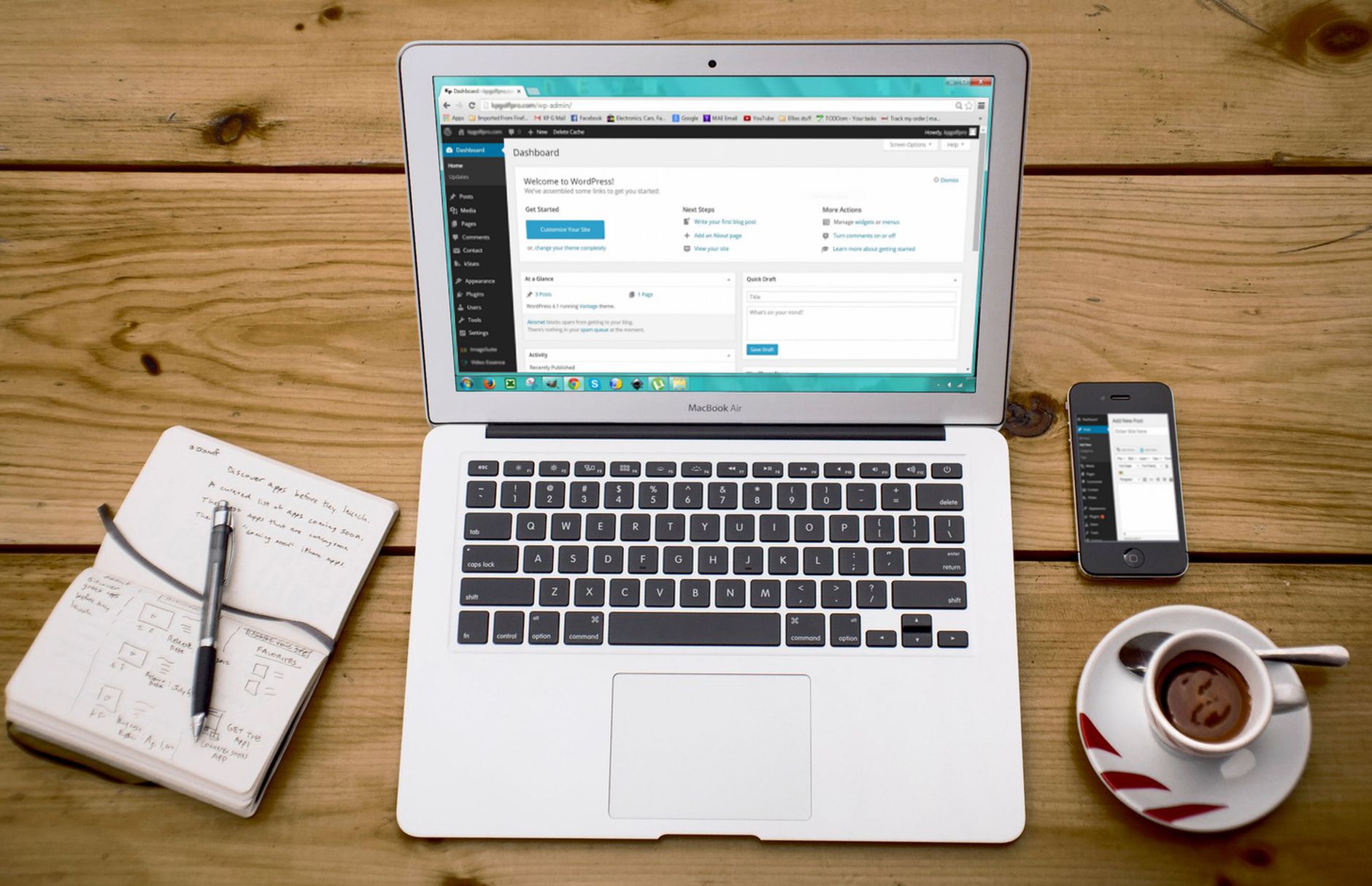
  • WordPress Themes Common Mistakes to Avoid

    WordPress Themes Common Mistakes to Avoid

    Choosing the right WordPress theme is crucial for building a successful website. However, many users fall into common pitfalls that can affect site performance, user experience, and long-term maintainability. Understanding these mistakes helps you avoid costly redesigns and ensures your site runs smoothly and looks professional.

    This guide explores the most frequent WordPress themes common mistakes and provides practical advice to help you select, customize, and maintain themes effectively. Whether you’re a beginner or an experienced developer, these insights will help you create a robust and future-proof WordPress site.

    Quick Answer

    WordPress themes common mistakes include choosing bloated or poorly coded themes, ignoring responsiveness and accessibility, neglecting SEO optimization, and failing to keep themes updated. Other frequent errors are overloading with unnecessary plugins, not following WordPress coding standards, and overlooking security best practices. Avoiding these pitfalls ensures better site speed, user experience, and easier maintenance.

    Understanding the Importance of Choosing the Right Theme

    The theme you select sets the foundation for your website’s design, functionality, and performance. A well-coded, lightweight theme improves loading times and SEO rankings, while a poorly designed one can slow your site and frustrate visitors. It’s essential to evaluate themes not just on looks but also on code quality, support, and compatibility with plugins.

    Many beginners pick themes based on appearance alone, which often leads to problems later. Prioritize themes that are regularly updated, well-reviewed, and built with clean code to avoid common WordPress themes mistakes.

    Common WordPress Themes Mistakes in Coding and Standards

    Ignoring WordPress coding standards is a widespread mistake that can cause compatibility issues and security vulnerabilities. Themes that don’t follow these standards may conflict with plugins or WordPress core updates, leading to site crashes or broken features.

    Always select themes developed according to the WordPress Theme Review Guidelines. This ensures your theme uses proper hooks, sanitizes inputs, escapes outputs, and maintains secure and maintainable code.

    Choosing Bloated or Overly Complex Themes

    Many premium themes come packed with excessive features, scripts, and plugins that you might never use. This bloat slows down your website, negatively impacting user experience and SEO.

    Instead, opt for lightweight themes like GeneratePress, Astra, or Blocksy. These themes offer a clean base and allow you to add only the features you need, keeping your site fast and efficient.

    Neglecting Responsiveness and Mobile Friendliness

    With the majority of web traffic coming from mobile devices, using a non-responsive theme is a critical mistake. Themes that don’t adapt to different screen sizes create poor user experiences and can hurt your search engine rankings.

    Test your theme on various devices and screen sizes before finalizing your choice. Responsive themes automatically adjust layouts, font sizes, and images to ensure usability across desktops, tablets, and smartphones.

    Overlooking Accessibility Features

    Accessibility ensures your website is usable by people with disabilities, including those using screen readers or keyboard navigation. Many themes lack proper accessibility support, which can exclude a significant portion of your audience.

    Choose themes that are accessibility-ready and follow the Web Content Accessibility Guidelines (WCAG). This includes semantic HTML, keyboard navigation, color contrast, and ARIA roles.

    Ignoring SEO Optimization in Themes

    Your theme plays a vital role in SEO by structuring content correctly and loading quickly. Themes that don’t support SEO best practices can hinder your site’s visibility on search engines.

    Look for themes that support schema markup, clean HTML5 code, fast loading times, and compatibility with popular SEO plugins. Avoid themes with inline styles or excessive JavaScript that block content rendering.

    Failing to Keep Themes Updated and Maintained

    Using outdated or abandoned themes is a common mistake that exposes your site to security risks and compatibility problems. Themes need regular updates to fix bugs, patch vulnerabilities, and stay compatible with the latest WordPress versions.

    Before choosing a theme, check its update history and developer support. Avoid themes that haven’t been updated for over a year or lack active support forums.

    Overloading Your Site with Unnecessary Plugins

    Some themes require many plugins to function fully, which can bloat your site and cause conflicts. Installing too many plugins also increases security risks and slows down your website.

    Choose themes that work well with minimal plugins or come with essential features built-in. Always evaluate whether a plugin is necessary before adding it to your site.

    WordPress Themes Common Mistakes Checklist

    • Choosing themes based on appearance only without checking code quality
    • Ignoring theme responsiveness and mobile compatibility
    • Using themes without accessibility features
    • Installing bloated themes with unnecessary features
    • Neglecting regular theme updates and support
    • Overusing plugins required by themes
    • Not verifying SEO-friendliness of the theme
    • Ignoring WordPress coding standards in theme development

    Comparison Table: Popular Lightweight WordPress Themes

    Theme Performance SEO Friendliness Accessibility Customization
    GeneratePress Excellent (Lightweight) Strong SEO Support Accessibility Ready Highly Customizable
    Astra Fast Loading SEO Optimized Accessibility Features Flexible Design Options
    Blocksy Optimized Speed SEO Friendly Accessibility Ready Drag & Drop Builder
    OceanWP Good Performance SEO Compatible Accessibility Support Extensive Customization
    Neve Lightweight & Fast SEO Optimized Accessibility Ready Easy to Customize

    Measuring Theme Performance and User Experience

    To ensure your theme performs well, regularly measure key performance indicators (KPIs) such as:

    • Page Load Speed: Use tools like Google PageSpeed Insights or GTmetrix to check loading times.
    • Mobile Usability: Test responsiveness on multiple devices and screen sizes.
    • Accessibility Compliance: Use accessibility checkers like WAVE or Axe.
    • SEO Metrics: Monitor organic traffic and search rankings to assess SEO impact.
    • User Engagement: Track bounce rates and session durations to gauge user experience.

    Regularly reviewing these KPIs helps identify if your theme is meeting performance expectations or if adjustments are needed.

    Common WordPress Themes Mistakes to Avoid

    Many WordPress users unknowingly make mistakes that can be easily avoided with proper knowledge. Here are some of the most frequent errors:

    • Ignoring Theme Reviews and Ratings: Not checking user feedback can lead to selecting unreliable themes.
    • Not Testing Themes Before Launch: Failing to preview and test themes on staging sites can cause unexpected issues.
    • Using Multiple Themes Simultaneously: Switching themes without proper cleanup can cause conflicts.
    • Customizing Themes Incorrectly: Editing core theme files instead of using child themes leads to lost changes after updates.
    • Neglecting Backup Before Theme Changes: Not backing up your site before switching or updating themes risks data loss.

    When to Hire an Expert or Agency for Theme Development

    If your website requires a unique design, complex functionality, or you want to ensure best practices are followed, hiring a WordPress expert or agency is a smart choice. Professionals can:

    • Develop custom themes tailored to your brand and business needs.
    • Ensure compliance with coding standards, SEO, and accessibility.
    • Optimize theme performance and security.
    • Provide ongoing support and maintenance.

    For businesses without in-house technical skills, professional help reduces risks and saves time, allowing you to focus on your core operations.

    WordPress Website Improvement Checklist

    For wordpress themes common mistakes, review the parts of a WordPress website that affect trust, usability, SEO, security, and lead generation. Keep changes practical and measurable.

    • Check theme quality, plugin load, mobile layout, speed, security, and forms.
    • Review SEO titles, meta descriptions, schema, headings, internal links, and image alt text.
    • Track clicks, rankings, enquiries, conversions, and important page engagement.

    Technical Website Quality Checks

    A business website should be checked for speed, mobile layout, navigation clarity, form function, tracking, security, plugin load, and SEO basics. These checks protect both user experience and search visibility.

    • Test mobile pages, contact forms, thank-you pages, and menus.
    • Review Core Web Vitals, image size, caching, and plugin load.
    • Check SEO titles, meta descriptions, schema, sitemap, and redirects.

    Monthly Website Maintenance Checklist

    Reviewing a website monthly prevents small issues from becoming ranking or lead-generation problems. Check broken links, plugin updates, backups, analytics, form submissions, and high-value pages.

    • Update plugins and themes safely after backup.
    • Review top pages by traffic, enquiries, and conversion rate.
    • Fix thin pages, missing internal links, and outdated service information.

    Frequently Asked Questions

    What is the biggest mistake when choosing a WordPress theme?

    The biggest mistake is selecting a theme based solely on appearance without considering code quality, performance, and support, which can lead to slow loading times and compatibility issues.

    How can I check if a WordPress theme is SEO friendly?

    Look for themes that use clean HTML5 code, support schema markup, load quickly, and are compatible with popular SEO plugins. You can also test the theme’s demo with SEO audit tools.

    Why is responsiveness important in WordPress themes?

    Responsiveness ensures your website looks and functions well on all devices, including smartphones and tablets, improving user experience and search engine rankings.

    Can I customize a WordPress theme without coding?

    Yes, many modern themes offer drag-and-drop builders and customization options in the WordPress Customizer, allowing you to make changes without touching code.

    What are child themes and why should I use them?

    Child themes allow you to customize a parent theme without modifying its core files. This way, you can update the parent theme without losing your customizations.

    How often should I update my WordPress theme?

    Update your theme whenever a new version is released to ensure security patches, bug fixes, and compatibility improvements are applied promptly.

    Is it safe to use free WordPress themes?

    Free themes can be safe if downloaded from reputable sources like the official WordPress repository. Always check reviews, update frequency, and support availability.

    What should I do if my theme causes site errors?

    Switch to a default WordPress theme temporarily, check for plugin conflicts, and consult your theme developer or support forums for troubleshooting.

    Conclusion

    Avoiding WordPress themes common mistakes is essential for building a fast, secure, and user-friendly website. Focus on selecting lightweight, well-coded, and regularly updated themes that support responsiveness, accessibility, and SEO. Always test themes thoroughly and use child themes for customization to protect your site during updates.

    If you need expert help, consider hiring professionals who can develop or customize themes to meet your specific needs. For more insights on WordPress best practices, check out WordPress Themes Mistakes to Avoid and explore advanced customization tips at WordPress Themes Agency Guide for Business.

    Official Resources for Further Reading

    These official resources support the topic and help readers verify platform-specific guidance.